
For pharmaceutical distributors, medical store owners, wholesalers, and retailers, quick access to business data is essential for managing daily operations. From checking stock availability and reviewing invoices to tracking orders and monitoring accounts, MARG ERP helps businesses manage important workflows. With cloud hosting, authorized users can access their hosted MARG ERP environment remotely, depending on their hosting configuration and permissions.
Still, there might be issues with MARG Cloud Login that can interfere with regular operations. Incorrect user IDs and passwords, forgotten passwords, poor internet connection, session expiration, and remote desktop problems are some of them.
Understanding how to access the MARG Cloud login page, identify login problems, and follow the right troubleshooting steps can help reduce unnecessary downtime.
This guide explains how to access MARG ERP on Cloud, resolve common sign-in issues, reset passwords through the appropriate support channel, and maintain secure access to business data.
What Is MARG Cloud Login?
MARG Cloud Login refers to the process of accessing a MARG ERP application hosted on a cloud server through an authorized connection. Instead of relying exclusively on a computer at the business premises, users may be able to connect to their hosted ERP environment from supported devices and locations.
The login procedure will vary depending on the particular cloud host provider. In some instances, one has to log in through the portal accessed via a web browser. At times, it might be through a remote desktop or other remote access application.
For instance, in the case of a drug wholesaler who travels to visit their suppliers, they need to log into their MARG ERP environment and either verify whether the particular drugs are available or check their outstanding invoices.
Cloud access can support:
- Remote access to hosted MARG ERP.
- Inventory and stock information review.
- Billing and accounting activities.
- Coordination between authorized office staff and remote teams.
- Access to business information without depending entirely on one office computer.
It is necessary to understand the difference between logging in to the MARG ERP software and logging in to the cloud server. The users will have to authenticate at the remote location first and then log in to the MARG ERP software.
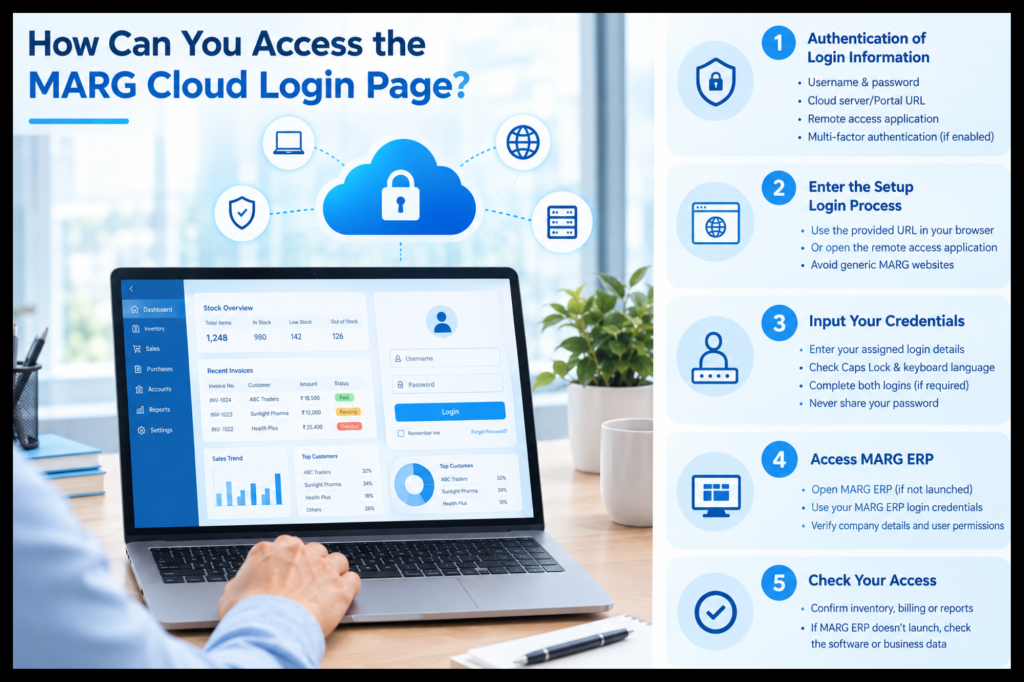
How Can You Access the MARG Cloud Login Page?
The steps for MARG ERP Cloud login vary by provider and configuration. Follow the instructions supplied by your cloud hosting administrator rather than assuming every MARG installation uses the same website or login method.
Step 1: Authentication of Login Information
Remember to keep in mind the following pieces of information prior to the connection:
Your valid username and password.
- Cloud server address/portal URL/remote desktop information from your hosting provider.
- Any required remote-access application.
- Multi-factor authentication details, if enabled.
Always use the official access details supplied by your provider. Avoid entering business credentials on unfamiliar websites or links received from unverified sources.
Step 2: Enter the Setup Login Process
If the provider offers you the MARG Cloud login page based on your browser, then enter the authenticated URL in your browser.
In case the setup is based on Remote Desktop, then open the remote access application and type the server address.
Do not assume that a generic MARG website is what you will use to log into your hosted server. This will depend on how you have set up your account and subscription.
Step 3: Input Your Credentials
Enter your assigned login details carefully. Ensure that your Caps Lock key is off and that your keyboard language is correct.
If your environment uses a separate cloud login and MARG ERP login, complete both authentication steps as instructed.
Never share passwords with colleagues through unsecured messages or store them in easily accessible locations.
Step 4: Access MARG ERP
Once the connection to the hosted environment is successful, open MARG ERP if it has not opened on its own.
Use the login credentials for MARG ERP when asked to do so. After logging in, ensure that the right company details and information allowed for your user role are accessible.
Step 5: Check Your Access
Confirm if the necessary capabilities, including inventory access, billing, or accounting reports, are accessible.
If the cloud access is successful but MARG ERP does not launch, the issue could be with the software or the business data instead of the cloud access.
Common MARG Cloud Login Issues and How to Resolve Them
MARG Cloud login issues can occur at different stages of the connection process. Identifying where the problem appears is the first step towards resolving it.
1. Incorrect Username/Password
Reason for the problem: It is possible that there was an incorrect input of the username and password, or the password has recently been changed.
- Solution: Re-enter your username/password combination carefully.
- Check Caps Lock and keyboard settings.
- Confirm that you are using the credentials for the correct login stage.
- If the credentials still fail, contact your administrator or hosting provider to verify your account.
Do not make repeated login attempts in case this account becomes locked because of several unsuccessful attempts.
2. Forgotten Password
Possible cause: You may have forgotten your cloud account password or your separate MARG ERP password.
What can be done to fix this problem?
Find out which account is blocking your access through the password. If there is an officially recognized password recovery procedure, follow the instructions provided.
- Otherwise, contact the proper administrator.
- Complete any required identity verification before resetting access credentials.
A MARG Cloud password reset may need to be handled by the cloud administrator, while a MARG ERP application password may require a different process. Do not assume that resetting one password will reset the other.
3. MARG Cloud Server Is Not Connecting
Reason: This could be due to problems such as a poor internet connection, wrong server address, or any problem related to server or remote access configuration.
How to resolve it:
- Check whether other websites or online services are working.
- Restart your internet connection if necessary.
- Verify the server address supplied by your provider.
- Close and reopen the remote-access application.
- If the server is still unreachable, please contact hosting support.
If multiple authorized users face the same problem simultaneously, then it might be a server problem.
4. Login Page Is Not Opening
Potential causes: The login URL might be wrong; there could be some corruption with the browser session, or some network or security settings are blocking the login.
Solution:
Validate the URL from which you will be logging in by contacting your hosting provider.
Verify your internet connectivity.
Try accessing it using the validated URL through another compatible web browser.
- If the problem still persists, then clear the browser cache.
- Check whether a firewall, virtual private network, or some other network policy is denying access.
Do not simply bypass your security settings to get the login page working.
5. Remote Desktop Connection Fails.
Probable cause: The address of the remote desktop may be wrong, the connection may be restricted, or the remote server may be down.
Solution:
Check the server name/address.
Determine if you have permission to remotely log on.
Check whether your network supports the necessary connectivity.
- Ask your administrator to verify the server status and remote-access permissions.
In case the link does not get established before you start MARG, you need to diagnose the remote access layer initially.
6. ERP MARG Will Not Open Post Login
Cause: The session is probably running in the cloud environment, but there might be an initialization error, licensing error, or permission error with the application.
Resolution: Confirm that the remote desktop is up and running.
Try to open MARG ERP through the application shortcut.
Observe any errors that appear.
Report it to your administrator or application support team.
Do not try to uninstall the application or alter any data belonging to the company without consulting a technician first.
7. Slow Login or Frequent Disconnects
Possible Cause: Poor internet bandwidth, latency, heavy server load, or problems with device performance could have caused the problem.
Solution to the problem:
Get connected via a reliable source of internet.
End all applications using internet bandwidth.
- Ascertain if the problem involves one or more people.
- Ask the provider to review server resources and connection performance.
For businesses handling frequent billing and inventory updates, reliable connectivity and appropriate server resources are important for maintaining a consistent workflow.
How Can You Keep MARG Cloud Access Secure?
Convenient access must be supported by appropriate security practices, especially when ERP systems contain financial records, customer details, supplier information, and pharmaceutical inventory data.
Follow these precautions:
- Strong passwords should be created: Each user should create a password which is different from all other cloud and ERP users’ passwords.
- An additional level of security should be introduced: Multi-factor authentication should be used if possible.
- The permissions must be assigned based on roles:
- Only those functions and data that an employee needs for work must be accessible to them.
- The use of shared accounts is not allowed: individual accounts raise the level of accountability and simplify access management.
- Devices need updating: users should update their operating systems, web browsers, and remote access utilities.
- Users must sign out: it is essential to sign out when using shared computers.
- It is important to create backups: check whether your service provider makes backups correctly. Suspicious activities should be reported: Report any unusual signs of unauthorized login.
These methods will enable pharmaceutical distributors and medical stores to safeguard their business data.
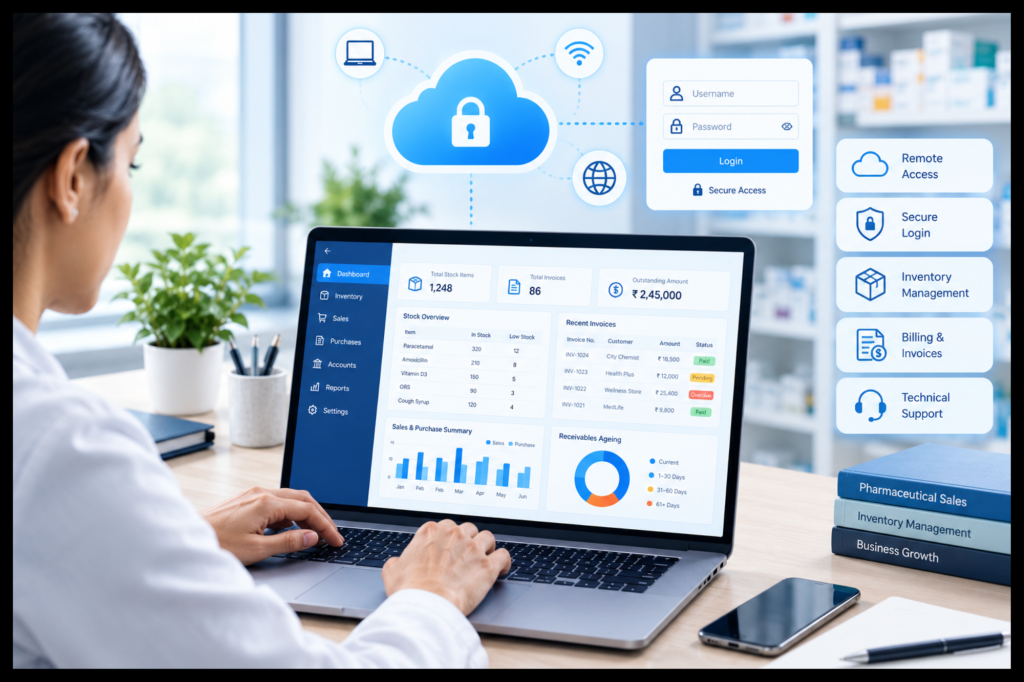
How Can Tally Cloud Hub Help with MARG ERP on Cloud?
For businesses that want to access MARG ERP beyond a single office computer, cloud hosting can provide a centrally hosted environment for authorized users. The experience depends on the hosting configuration, available resources, connectivity, and access controls.
Cloud Hub by Tally offers cloud hosting solutions for business applications such as MARG on Cloud. Businesses contemplating cloud hosting can consult the service provider to discuss their operational needs, user access, connectivity, security aspects, and backup facilities.
Before choosing a solution, ask the hosting team about:
- The supported MARG ERP version and hosting requirements.
- The login method and remote-access procedure.
- User account management and permission controls.
- Backup schedule and recovery process.
- Availability of technical support and its escalation process.
- Adequate server resources to accommodate your billing, inventory, and accounting workload.
Selecting an appropriate hosting system will enable firms to plan for their remote access needs without ignoring security, performance, and technical support.
Conclusion
The process of logging into MARG Cloud Login is facilitated by understanding how the host connects to the cloud service, having the right login details, and differentiating between cloud authentication and MARG ERP software login. Most common login issues can be solved by analyzing the state of the internet connectivity, validating the login details, evaluating the server connectivity, and reaching out to the relevant support team.
Pharmaceutical distributors, wholesalers, medical store owners, and retailers can benefit from having reliable access to billing, inventory, and accounting data. Tally Cloud Hub provides MARG cloud hosting services to businesses looking to gain remote ERP access. Discuss your needs with the host company to get an idea of how they offer access to the cloud system and any other pertinent matters.
FAQ
1. How do I get to MARG Cloud Login?
You need to log in using the approved login URL, remote desktop client, or any other connection process offered by your cloud hosting company. Use your login details and launch MARG ERP after establishing the connection.
2. Is MARG Cloud Login equivalent to MARG ERP Login?
This is not always true. MARG Cloud Login will authenticate your access to the hosted environment, while MARG ERP Login will authenticate your access to the ERP system. Some systems might merge these two processes into one.
3. How do I reset my MARG Cloud password?
If there is an official password recovery process at your provider, use that. Otherwise, contact your cloud administrator or your hosting service. In case you forget your MARG ERP application password, follow the password recovery process separately.
4. Why does my MARG ERP Cloud log-in fail?
Typical reasons include using wrong credentials, server unavailability, unstable internet connection, wrong portal URL, session timeout, and user permission problems. Find out whether the error is due to the cloud connection or within MARG ERP.
5. Is it possible to use MARG ERP on the cloud at some other place than the office?
Yes, provided that your hosting environment allows for remote access and you have all the necessary privileges, credentials, device, and internet connectivity to connect remotely.
6. What should I do if the MARG Cloud login screen does not load?
Please check the web address, Internet connectivity, browser used, and network restrictions. If you are still facing problems, please get in touch with the hosting company to confirm that the portal or server is accessible.
7. How secure is MARG ERP in the cloud?
It depends upon the host and how it is managed. Authentication, restricted access by users, secure connection, software upgrades, monitoring, and backups can increase security.
8. Who should I contact if MARG Cloud login problems continue?
Contact your cloud hosting provider for server, remote-access, or cloud account problems. Contact your MARG ERP administrator or software support team for application-specific errors, licensing concerns, or ERP user account issues.